How to Rotate Video in CapCut? Best Guide 2026
Looking to rotate video in Capcut at the angle (90°, 180°, 270°, 360°) to prettify? It usually happens when you mistakenly create a video with the wrong angle, or maybe you have to optimize for different social media orientations, to adjust random clips in the same project.
Making tilted video smooth, scene balance, clean, and standardized, the rotate tool in Caput Pro enables you to create omniform, cross-platform (YouTube, Facebook, Instagram, etc.) content. The more you polish the meritorious content, the higher you make a splash.
Today, this article is going to be guide-full about how to rotate video in Capcut. Let’s do it together!
How to Rotate Video in Capcut?
Follow the steps below if you want to learn about “How to Rotate Video in Capcut?”:
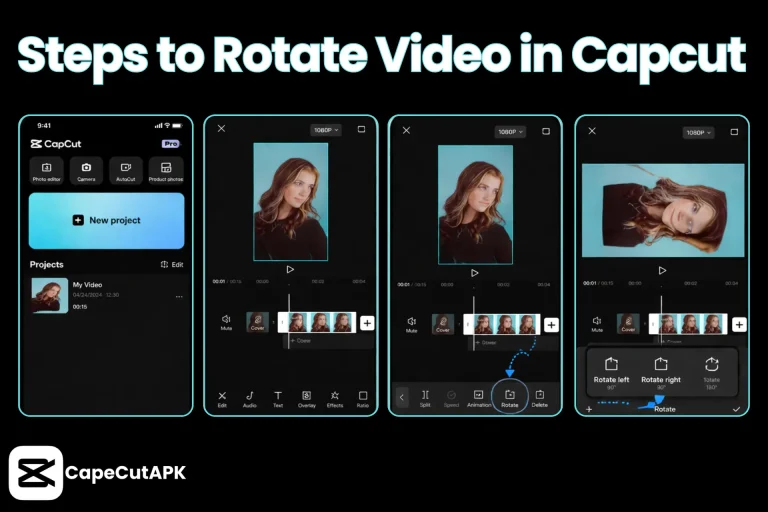
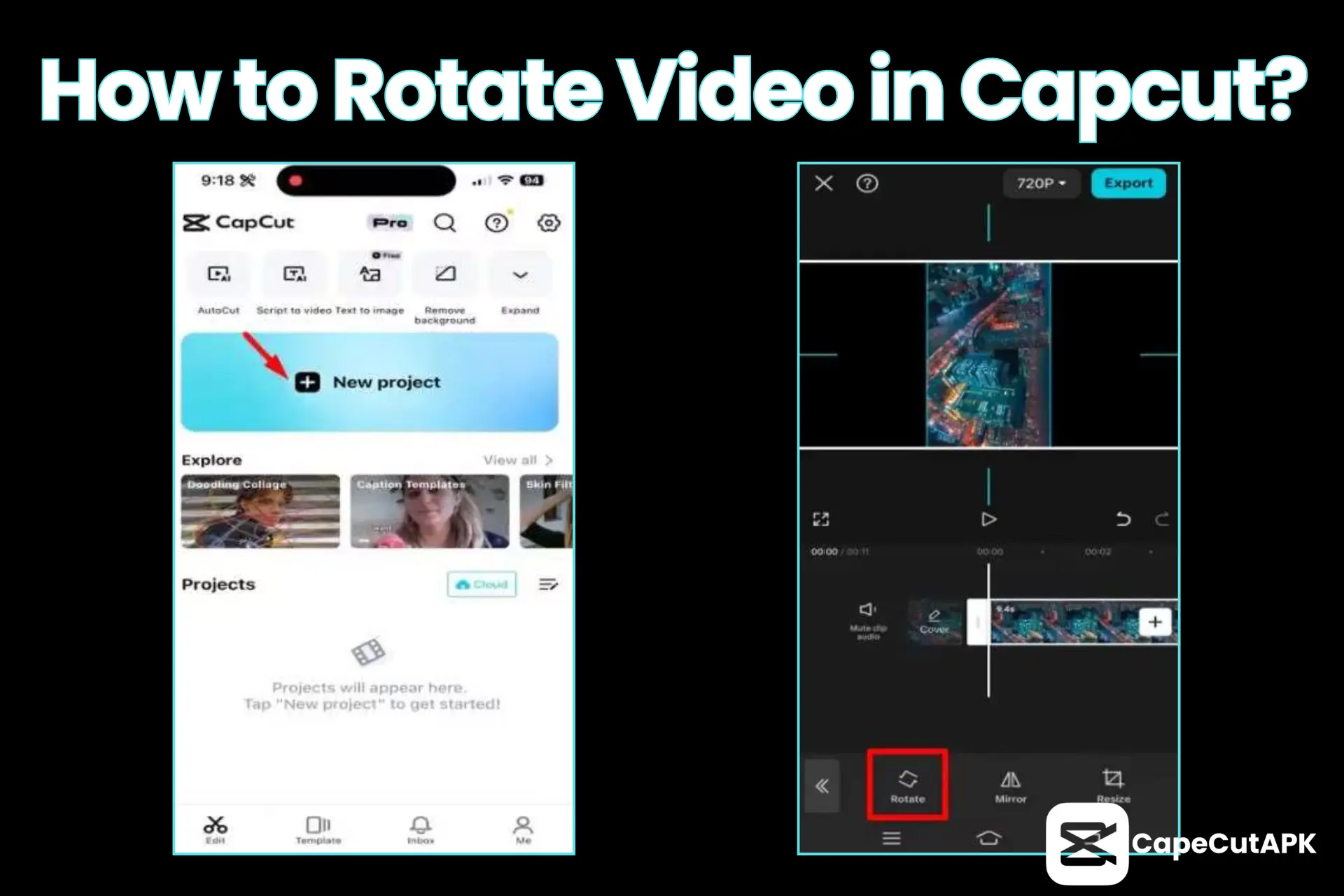
Step 1: Open the Capcut and start editing a new project, or you may continue the existing one.
Step 2: On the editing timeline, you may have a single clip or multiple clips. Tap on your desired video clip.
Step 3: By clicking, navigating and tapping the rotate option in the toolbar.
Step 4: Once you click on the rotate icon, the video will rotate by a side(clockwise, anticlockwise. Continue until your desired adjustment.
Step 5: Or rotate the video by dragging and adjusting the aspect to look prettier.
Step 6: Finalizing the video rotation, play once in the playback to preview.
Step 7: If okay, click to export the video to your device’s gallery.
Rotate Video in Capcut Online Editor?
If you want to rotate a video in the Capcut online version, follow these steps:
Step 1: Open the Capcut online editor in your browser by logging/signing in.
Step 2: Import video clips to the editing timeline.
Step 3: After uploading, you’ll see the toolbar in the upper-right corner, and click on the “Basic” option.
Step 4: Here, you’ll find the rotate option, you can dial the figure or drag the video corners manually to fit the scene.
Step 5: After you finish editing, tap on the export button, set the frame rate and video resolution to export.
Why Capcut Rotate Video?
Fix Dutch Angle:
When you record video with the wrong orientation angle accidentally, the Capcut video rotate tool helps to resolve this issue.
Fit to Platform need:
To make video aspects adjustable with the mobile view of different video-sharing platforms like YouTube, Facebook and Instagram. As you record a regular video (16:9) for YouTube, you can also create a short video for YouTube Shorts (9:16).
Reuse a Video:
You can reprocess a video by rotating it to adapt it in new format in Capcut.
Enhance Video Quality:
Sometimes rotating a video yields the removal of unappealing bars or borders from the video, making it more professional-looking.
Conclusion
Capcut Pro APK offers a full hand to creators if they created a video sideways or upside down. They can even optimize it to upload to social media platforms confidently. The rotate tool straightens the flips of clips to give a professional touch.
The hallmark of Capcut is that the Capcut online version on PC gives an upper hand to rank your skill to great heights. Using this version eliminates the downloading and installing of massive softwares. Separating valuables from the junk, Capcut creates eye-catching videos rather than discarded.