10 Pro-Level Editing Tips and Tricks in Capcut Free 2026

Capcut Pro has unlimited tools for short-form creators and easy-to-use, quick tools. But if you use standard features, you are missing powerful features of this app, and you can not know how it works. To access advanced video editing tools, it is necessary for you to use CupCut MOD APK with its pro features and also have some knowledge about video editing. Here we will give you 10 pro-level editing tips in Capcut for editing your video content as a professional.
1-Keyframe Animation
CapCut Pro adds powerful movements to your videos. You can add animation to your video clip as follows:
- Select the clip, filters, stickers, or text that you want to animate.
- Press the keyframe “Diamond” icon to add frames in your clip at each point in the timeline where you want animation.
- Change the size or position of each frame according to your animation requirement.
- CapCut automatically connects to all these added frames and creates smooth animation in preview.
- You can add zoom out and zoom in effects to give a natural looking to your video.
Keyframe animation gives a fantastic look to your video and makes it professional.
2-Text and Titles
This amazing feature helps you to add, customize, and animate static text overlays, dynamic titles, and captions to your videos easily. These texts and titles help you to explain and highlight the main points.
How to add text and titles:
- First, press on the “Text” option present in the top tool menu.
- Add text in your video as you want for the title or caption. Then click on the “+” icon to add this text to your video in the timeline.
- Select the added text again in the timeline for adjusting its color, font, style, size and position.
- If you want to animate this text in your video clip, then go to the “Animation” option.
- And adjust it for intro, out, or loop animations and adjust their duration according to your requirement.
3-Green Screen Adventure
You can change the background by using a green screen. You can adjust another scene that you want, without using external software. You can edit the background by using the chroma key feature as follows:
- With a solid background, import video.
- Clip selected on the timeline.
- From editing tools, select the chroma key.
- If you want to remove the background color, choose it.
- Fine-tune shadow and strength, smooth, clean cutout, simple green screen magic made easy.

4- Audio editing
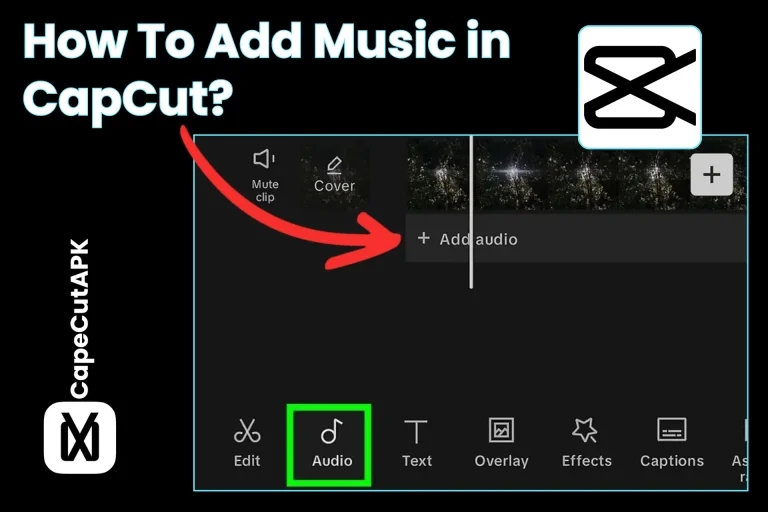
It’s essential to edit audio to make the sound enjoyable for you. By using a powerful feature of CapCut Pro APK, you can give attention to editing and adding sound effects, background music, sync audio with video, and voiceovers. All these things help you to improve professionalism and clarity of your project. You can edit audio as:
- Audio extract from the video that you want for separate editing.
- You can adjust pitch, volume, and fade very easily.
- Increase voice clarity and decrease noise. Trim, split, and move to audio clips.
- From the audio library, record voice-overs or add music.
5- Speed Adjustment
Fast and slow motion give excitement to your videos. You can use a speed curve for a smooth transition between speeds and add action-packed, cinematic effects. All these changes make your videos very glorious. You can use the speed curve as follows:
- By using a curve, you can adjust speed in CapCut. Follow these five steps for adjustment: *On the timeline, press your video.
- Then select the curve, open speed. Select custom or choose templates.
- Drag nodes down for slow motion and up for fast motion.
- Press the checkmark to submit.
6- Color Grading
Good color grading can give a glorious improvement to your video’s look. The color grading tools in CapCut automatically adjust the color according to your footage. Enhance balance and vibrancy, simplifying the process and giving a professional-grade look to your video.
7- AI-Based Auto Caption
It makes subtitles easy and fastly. This feature adds captions automatically by converting your spoken words into text and synchronizing with your video clip. You can use this feature as:
- First of all, press text and choose auto caption.
- Select the caption style and language that you want.
- You can also use AI to listen to voices, and AI generates captions in seconds by using this CapCut.
- After that, correct text mistakes or adjust timing.
All these features are perfect for longer videos, accessibility, multilingual content, and engaged with auto-play platforms.
8- Multilayer Editing
Multilayer editing tools enable you to add many videos, images, text, stickers, and audio on different layers in your video. By following this, you can add multiple layers to your videos.
- First press to overlay and add the following video or image.
- On the timeline, select your central clip.
- To add more layers, tap on “Overlay” present in the bottom toolbar.
- Then click on the “Add Overlay” option and adjust its position, size, or opacity.
This gives you complete control, and you make your videos professional and engaged.
9- Beat Sync Transition
In CapCut, you move to music smoothly in your videos. This feature helps you synchronize in your video clip instead of manual beat matching, and create smooth, rhythmic videos that look professional and engaging. You can use this feature as:
- First, select your video clip and add the music track that you want by using the ”Beats” or ”Auto Beat’ function.
- Then mark the beats in music, or CapCut detects them automatically.
- After that transition applies between video clips.
- To make the rhythmic flow of the video, adjust the transition according to beats.
- By this, you can adjust duration, transition style, and easing.
These features make your video smooth, energetic, and timed perfectly with music.
10- Exporting like a pro
CapCut Pro APK helps you export your content in high-quality resolution. This app offers extensive customization like adjusting resolution (1080p, 2K, 4K), frame rate, bitrate, and format (MP4) to balance quality and watermark removal for free. You can export your videos as professional as:
Conclusion
To sum up, Pro-Level Editing Tips in Capcut are powerful and innovative for editing. It edits videos for all levels. CapCut MOD APK gives you professional video editing due to some strong features, such as AI-powered, Beat Sync Transition, and vertical-to-horizontal Adaptation. Vertical videos convert into horizontal videos for YouTube videos, its availability for other social media videos. CupCat offers you many things in one place. It helps you to create videos for TikTok, Instagram, YouTube, and other social media. More makes you an expert in ad templates, video editing, and effects, and all editing can be done very confidently.