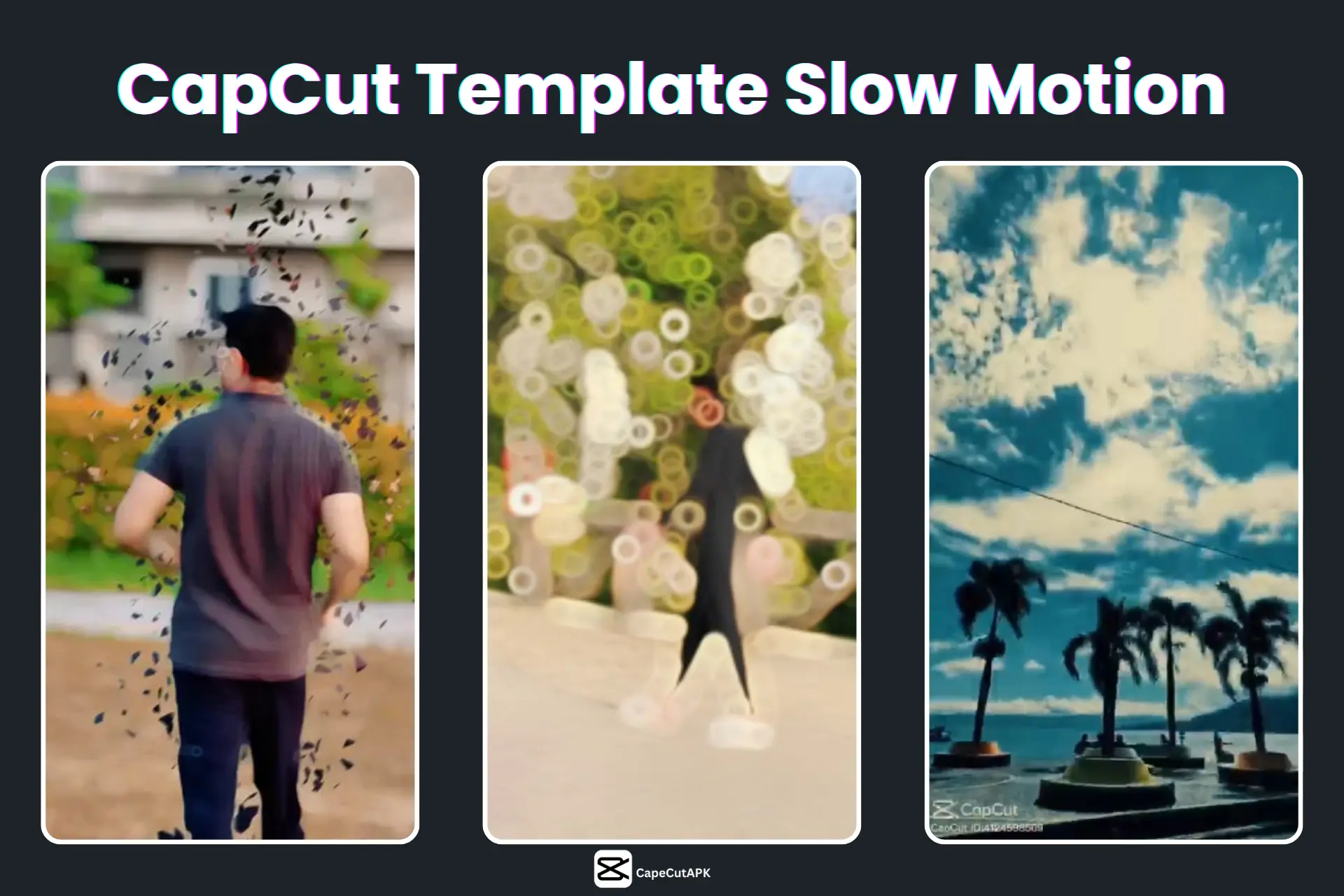
You’ve probably watched a few CapCut Slow-Motion clips and been curious how they achieve that dramatic, film-style look. And you don’t know how to use Slow-Mo templates on CapCut perfectly. In that case, I understand how to assist you.
You can use CapCut’s Slow-Motion templates very easily. Here I am going to discuss all about what Caput’s ready-made slow-motion templates are and how to use them. If you are a beginner or even a professional, after reading all the instructions, you will be able to use CapCut Slow-Motion templates.
What is the CapCut Slow Motion Template?
Inside the CapCut, there are some ready-made Slow-Motion templates to create Slow-Motion videos easily and fast. These templates come with already set speed and background music. Choose your favourite template and everything will be done. Each template has speed change, background music, filters, and transitions.
Why Use Slow Motion Templates?
People love using Slow-Motion templates because it is one of the easiest ways to make your videos creative. The following are some benefits of using CapCut Pro Slow-Motion templates that make it popular:
Save Time and Effort: These ready-made templates help you save your valuable time because they come with proper speed and background music.
Professional-Quality Edits: Expert editors create these templates. So, you can get professional-quality edits even if you are a beginner.
Perfect Music Sync: All Slow-Motion templates come with background music. This music fits with your video’s timing and rhythm perfectly.
Trend-Ready Styles:CapCut MOD APK regularly updates templates according to viral trends. You don’t need to search for trending templates additionally.
How to Use/Get a Slow Motion Template in CapCut?
For Mobile App (Android or iPhone)
Anyone can reach Slow-Mo templates on the CapCut mobile application. But sometimes “Template Section” is not present on the mobile app. So, in case you could not find the Template Section on your mobile, you can use the 2nd option. That’s why I am going to discuss an alternative method.
Option 1: From the Home Screen: If you have already installed the CapCut app, then open it. There you will see an option “Templates”, tap on it. Then, write in the search bar keywords like “Slow Motion”. At last, you can explore a wide range of slow-motion templates.
Note
If you don’t see the Template section, it means your app is outdated or region-restricted. Then follow the second way, given below.
Option 2: Through a Shared Template Link: Open your browser on mobile and search for CapCut Slow Motion templates. When you find a template, open its page and tap on “Use in CapCut.” It will instantly open in the app. Then upload your video and start editing. You can also send and save your favourite templates’ link.
For Desktop Version (PC or Laptop)
There is a different way to use CapCut Slow Motion templates on a PC or a Laptop. Use the following steps to use the template on the desktop version:
Go to CapCut’s official website. For this, open your browser. Then search for “CapCut” and click on the first website.
Its official website will open. On the left side, the menu bar is present. There you will see the “Template” option.
Click on this option and search for “Slow Motion” in the search bar. Then you will see many Slow-Motion templates.
Then open a template and import your footage, and start editing.
After this, hit the “Export” button.
Best Slow Motion CapCut Templates to Try
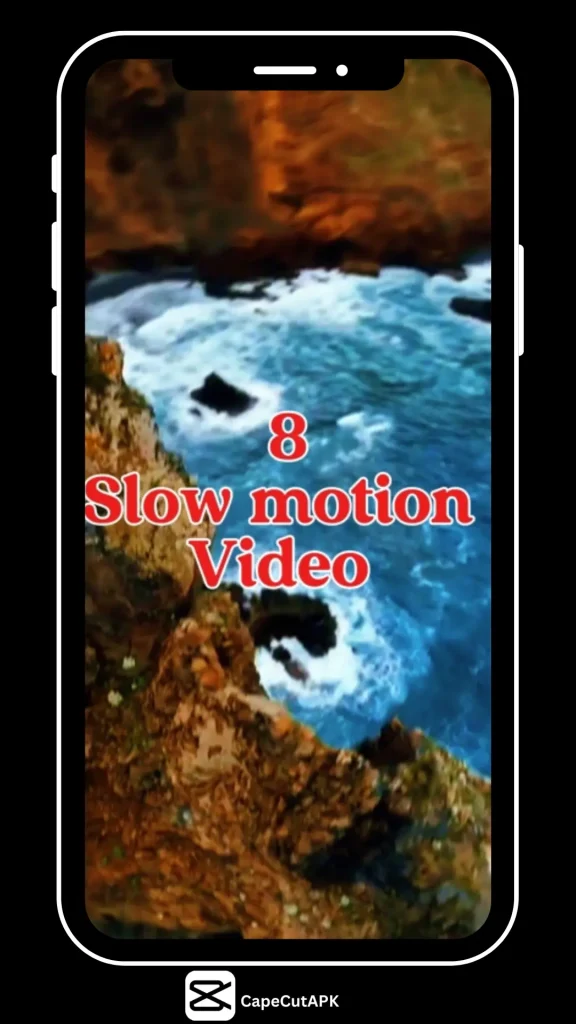
8 Slow Motion Video: This is a template containing 8 shots made to create cinematic Slow-Motion scenes.
Smooth Slow Motion: It is good if you want clean, fluid, slow effects, ideal for cinematic or lifestyle videos.
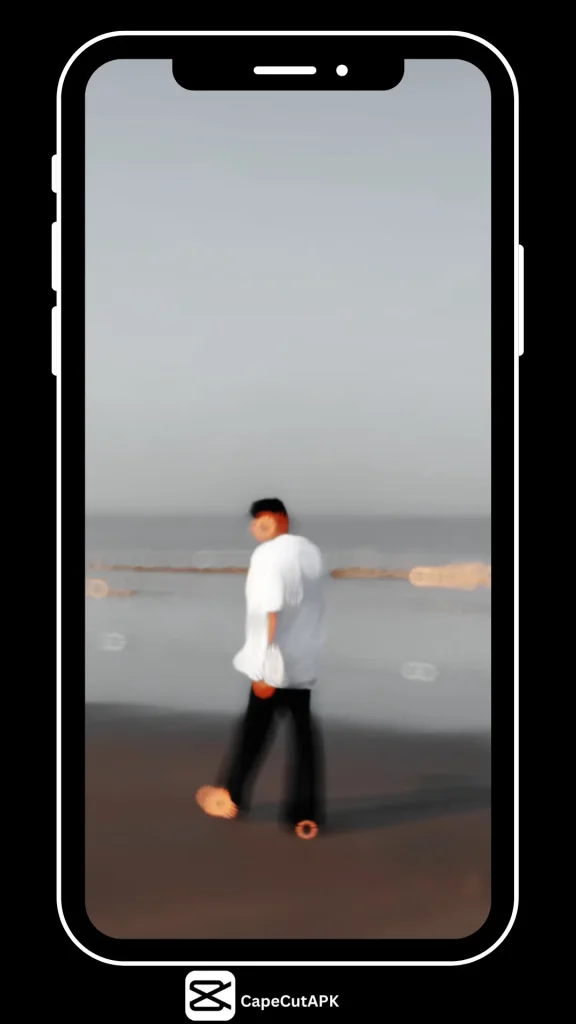
Holo Blur Slow-Mo: It combines blur with slow motion to give a magical effect.
SlowMo + Masking: This one includes masking techniques to apply Slow Motion to chosen clips.
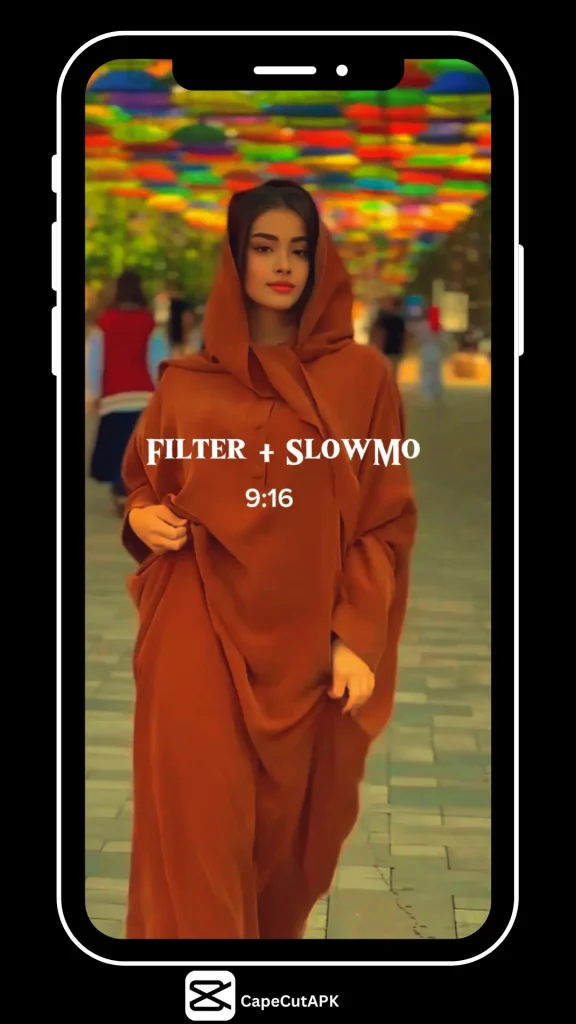
Slow Motion Filter: It is a template that ties Slow Motion with a visual filter effect.
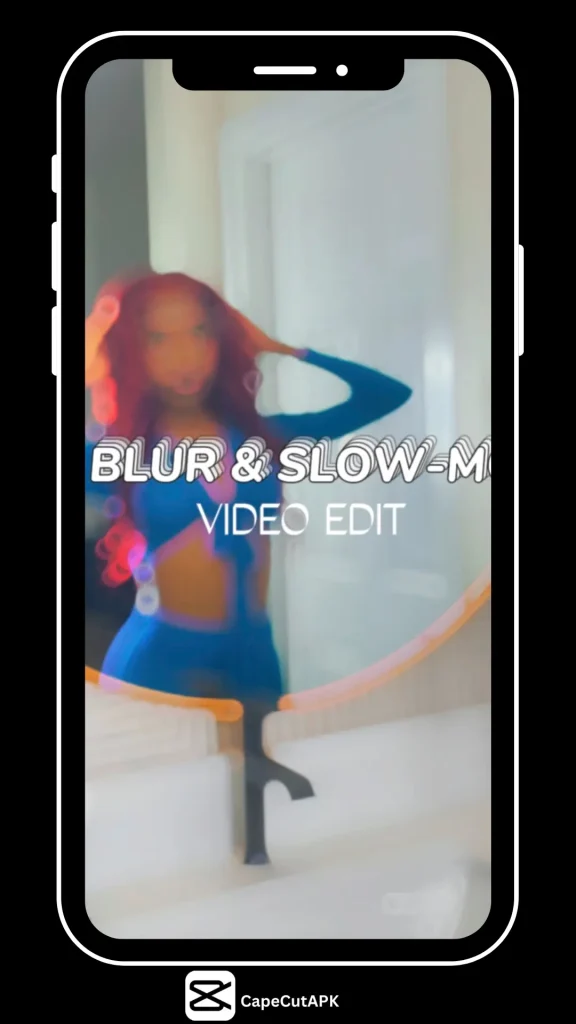
Blur / Slow-Mo Edit: This template combines motion blur and Slow speed for a dreamy look.
Tips for Creating Perfect Slow-Motion Videos in CapCut
Now it is time to focus on some tips that will make your Slow-Motion videos incredibly cool:
Each template has a different transition and background music. So, choose that template which matches your video type.
When you are recording your video, don’t make sudden and fast actions to keep everything natural.
When you are about to export your film, verify that the recorded clips move with the rhythm. Each action in the video should match with music properly, like a jump or even a smile.
Common Mistakes to Avoid
Avoid following mistakes for realistic results:
Recording video at low fps. It makes your video low quality.
Using Slow Motion too much in the video. It can make the video boring. So, use it on just the important parts.
Using very small clips that make the end fast. And sometimes using too large clips that make everything unattractive. Therefore, keep a balanced video length.
Adding too many filters and effects. This mistake is enough to make your video look messy. So, keep everything simple and use effects where they suit.
The mistake that beginners frequently make is not previewing the final result. Before exporting your video, always preview it so that music, clips, and effects match properly with each other.
Conclusion
By using Slow-Motion ready-made templates in CapCut, you can save a lot of your valuable time. Moreover, you get a professional final result because expert editors create all these templates. You can easily use it on the mobile CapCut app and also on the desktop version. Just follow some tips and avoid common mistakes, and get a professional final result. In brief, CapCut Slow-Motion templates make video editing simpler, faster, and more premium.
FAQs-Frequently Ask Question
On CapCut, you can do Slow Motion through two different methods. Adjusting speed manually or using a built-in template. In the first method, you will set everything manually. In the second method, you will pick a template, and everything will be done.
Launch CapCut and initiate a fresh project. Then add your video and choose the “Speed” option. If you want to change speed smoothly at different places, then you can use the “Curve” option. Otherwise, you can change speed using the slider.
How can I find a specific CapCut trending templates? The previous ‘Use Template’ button has disappeared from my TikTok account; do you know why? Is it possible to alter an “in style” template to the extent that it differs from another design of the exact same type?Although social networking is changing so quickly, it becomes…
Templates are designed to aid editors with their work. You can save both time and effort by using templates in your edits. In this era of social media, many templates have gained repute, but this trend fades after some time, and new templates take their place. The Thug Love CapCut Template is one of the…
Are you having issues locating the ICAL CapCut templates, or are you having difficulty synchronizing your photos? Would you like to produce professional-quality edits without spending hours using keyframes? With only a click of your button, the 26 templates will enable you to use your random gallery photographs and create a well-designed viral video. In…
If you want to join the trend of IDFWU-style videos, or want to understand what the IDFWU CapCut template is and how to use it. In such a situation, this guide is only right for you. Here you will get the entire guide to the IDFWU CapCut Template and its usage. On top of that,…