How to Use Green Screen on CapCut? Step-by-Step Guide
Have you ever imagined yourself filming on a beach or a busy street without leaving your room? Then you are in the right place, because in this article, you will learn step by step about “Use Green Screen on CapCut.”
The cool news? You don’t need to worry if you are a beginner. Because CapCut MOD APK offers you easy methods for this, you can use two methods, “Chroma key” and “Background Remover,” for this task in CapCut Pro APK. Suppose you follow all the steps carefully mentioned in this article. You can insert any style of background to your video.
What is Green Screen Editing?
In green screen editing, the person is recorded in front of a plain green screen. Then, during editing, the editor removes that green colour. And then add your desired background. In short, you can record yourself somewhere else from your room, without going there.
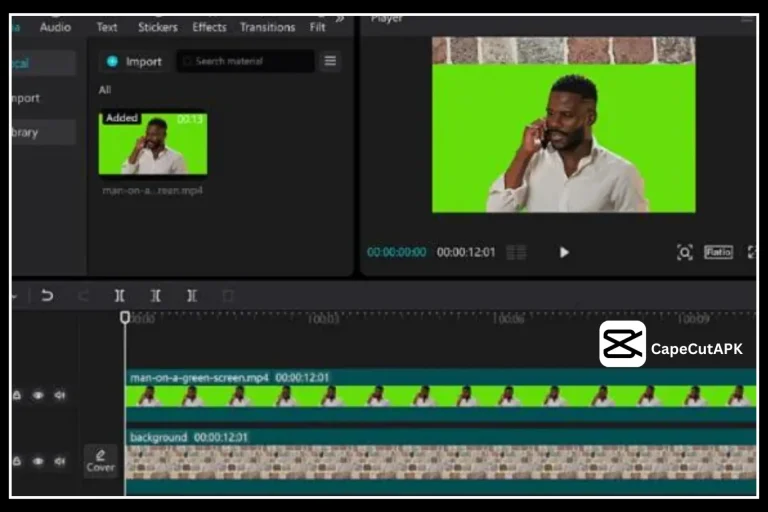
Methods for Using Green Screen on CapCut
CapCut APK offers two simple methods for green-screen editing.
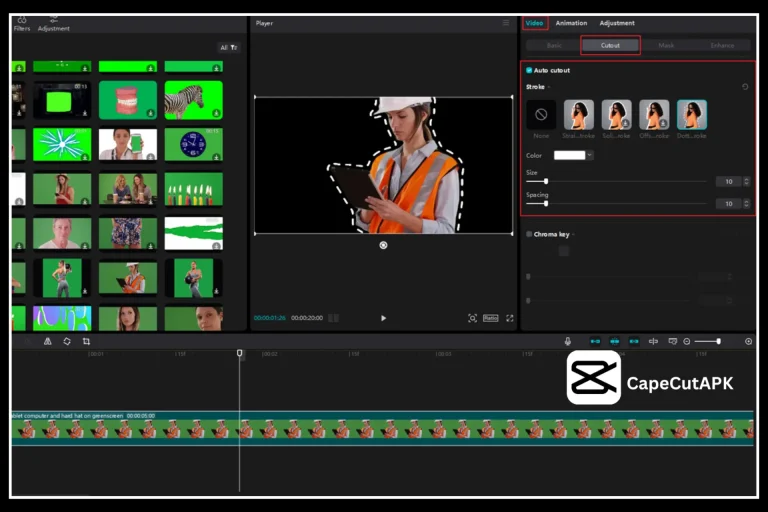
Method 1: By Using Chroma Key
Step 1: Import Video
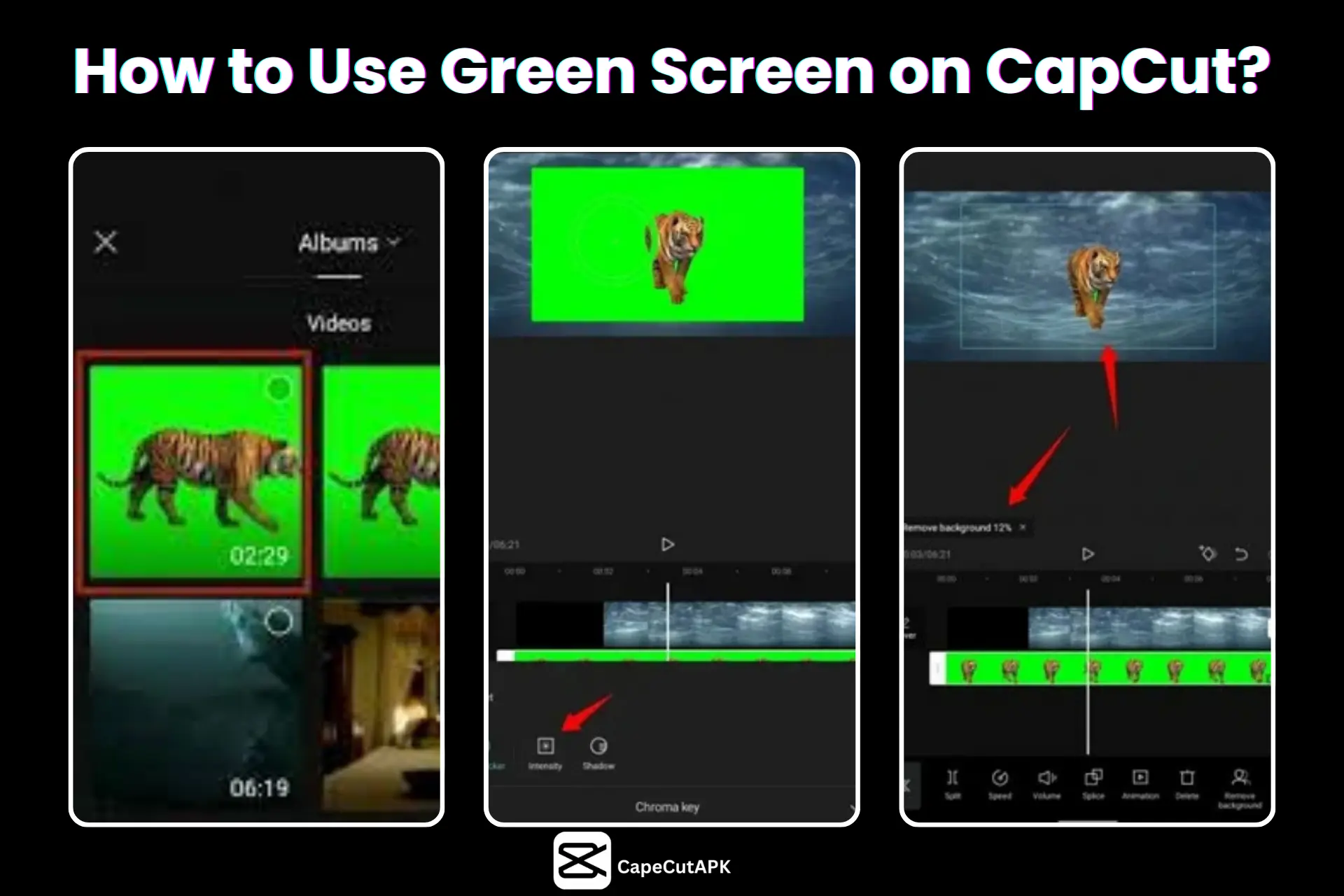
Click on “Import” to insert your filmed clip with a green backdrop. If you want just to practice, you can also select a video from CapCut Pro’s library section.
Step 2: Edit Video
Before starting to edit, your green screen video should be on the top layer and the background on the bottom layer. Then tap on the green screen video present in the timeline. There will be a “Video” option; click on it.
Then you will see the “Cutout” option, tap on it, and check the box of Chroma Key. After that, use the dropper to pick the green colour. Then adjust the “Strength” and “Shadow” sliders until the green colour in your video is gone. After this, CapCut MOD APK will automatically replace your green screen with your selected background.
Step 3: Export Video
Finally, you are able to save your video. Tap on “Export”. After this, adjust some basic settings like resolution, codec, and frame rate if needed. Then tap again on “Export.” After a few seconds, your video will be exported.
Method 2: Background Remover (Auto Cutout)
Step 1: Upload Video
Simply click on “Import” and import your green screen video. Also, import your desired background footage. In the work area, your green screen video should be on the top layer and the background on the bottom layer.
Step 2: Modify Video
Select your green screen video in the timeline. There will be a “Video” option; click on it. And tap on the “Cutout.” Then mark the “Auto Cutout.”
Once finished, CapCut Pro MOD APK will remove the green colour on its own. And you will see your chosen background instead of a green screen.
Step 3: Save Video
To download your film, tap on the “Export.” Adjust frame rate, codec, format, and resolution, etc. Then tap on the “Export”. After a while, your film will be automatically stored on your device.
Comparing Green Screen Methods
| Features | Chroma Key | Background Remover |
|---|---|---|
| Ease of Use | Manual Adjustment (Strength, Shadow) | AI-Based |
| Best For | Complex Edits, Precise Control | Simple Removal |
| Control Level | High (Colour Pick, Sliders) | Low (Automatic, Less Customizable) |
| Accuracy | More Accurate if Adjusted Properly | May Struggle with Detailed Edges |
Tips for Good Results
Pros and Cons of Use Green Screen on CapCut
Pros
Cons
Some Alternatives to CapCut for Green Screen Editing
Kinemaster:
It is a good option for mobile. It offers a strong Chroma Key feature. It is good for Android and iOS users.
Filmora:
This software is good for PC and Mac.
iMovie:
If you own an iPhone or Mac, this app is already there for you. It can handle background replacement, but the options are pretty simple compared to big editors. Still, it’s fine for quick projects.
Adobe Premiere Pro:
This software is best for every content creator who wants to create more effective content. This app offers you powerful editing tools as well as for removing green screens. Filmmakers or YouTubers often use it for creating attractive content.
Conclusion
You can use Green Screen on CapCut for adding any type of background to your video. The most important thing is that CapCut Pro APK makes it easy because CapCut MOD APK provides two methods, Chroma Key and Background Remover (Auto Cutout), for green screen editing.
f you want manual control, then Chroma Key is best. If you wish to erase the background simply with one touch, then Auto Cutout is the most effective choice.CapCut is best for beginners and also for advanced editors. Now download CapCut and start your green screen editing like a pro.