How to Blur Face in CapCut Videos, Easy Guide for Everyone
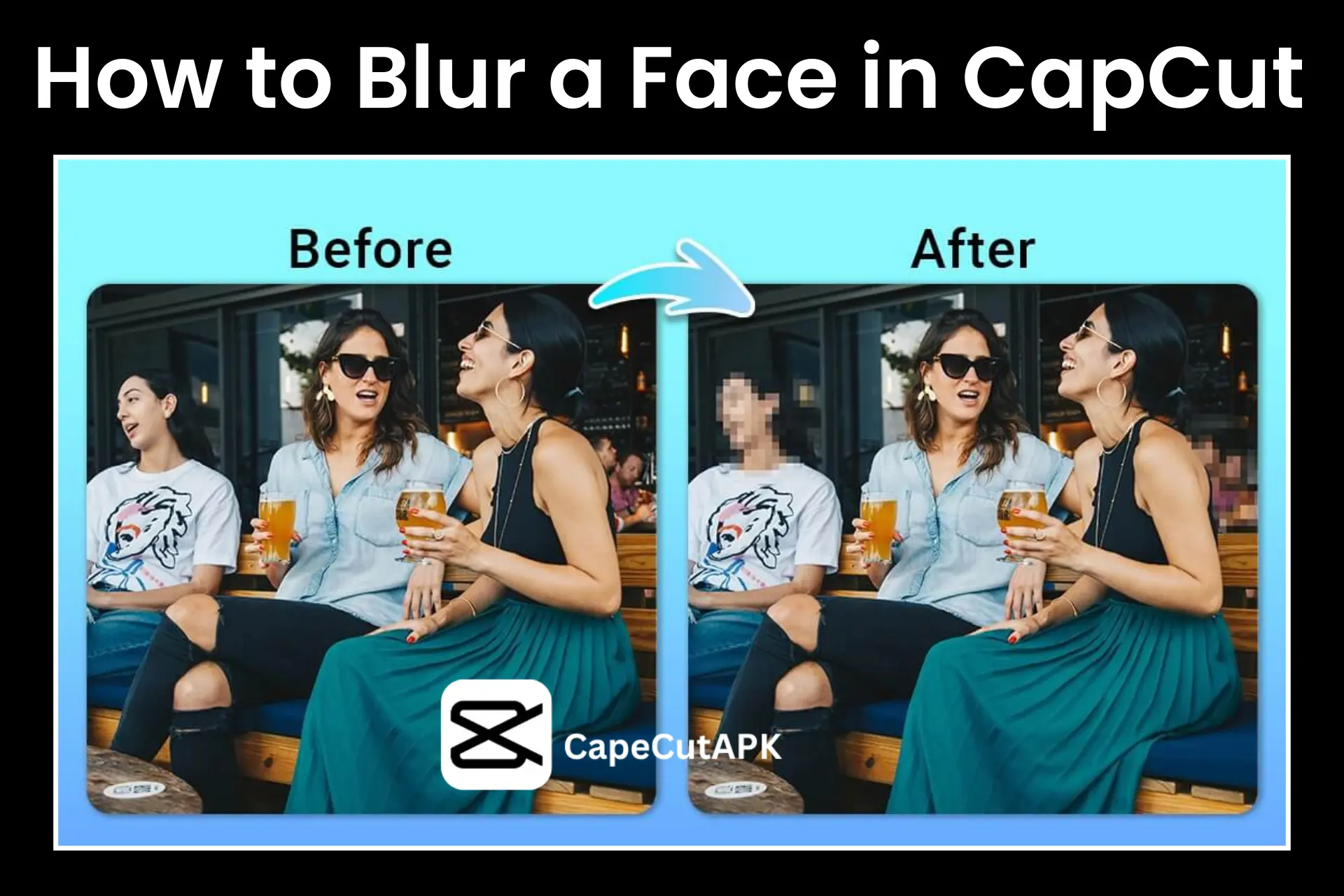
Have you ever captured a good-looking video at any moment, and some unwanted faces came into your video content? Now you want to blur them in this video? Do you want to publish your favorite video clip on different social media platforms, but due to the need to protect privacy and maintain anonymity in your content, you cannot do this? If you are searching for an easier method to blur a face, then you are in the right place! CapCut Pro offers an easy solution to this face-blurring problem for professionals as well as new CapCut users.
In this guide, you will learn simple steps about how to blur face in CapCut video using the APK CapCut. Here, we will explain how to blur face in CapCut. If you are a CapCut user, you have no need to use any special tool or expensive software for this problem. By following these easy steps, you’ll learn about how to blur face in CapCut and blur anyone’s face quickly. Let’s start now.
How to Blur Face in CapCut on Mobile (Step-by-Step Guide)
CapCut’s mobile version gives a beginner-friendly, simple, and powerful face-blurring feature to blur any object in video content. By using simple effects, useful masks, and keyframe tools, you can blur faces without losing video content quality. These given steps help you to create professional, polished, and ethical content with full privacy for any social media platform. To get the answer to this question; “How to Blur Face in CapCut?” follow these simple steps that are given below:
Step 1: Import Your Project:
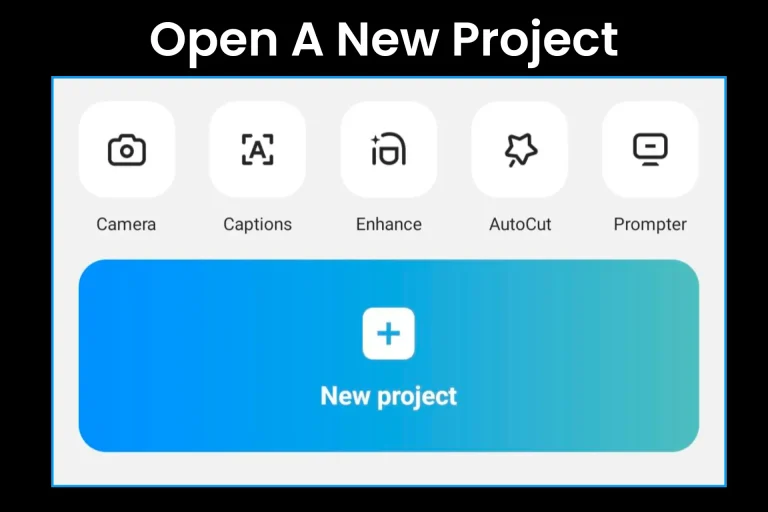
First, start this app on the Android or iOS mobile device that you are using. Then start your project in which you want to blur someone’s face to enhance the professional look of your video content, and if you don’t have any prepared projects, then click on “New Project” to add any video clip from your mobile gallery.
Step 2: Adding Blur Effect:
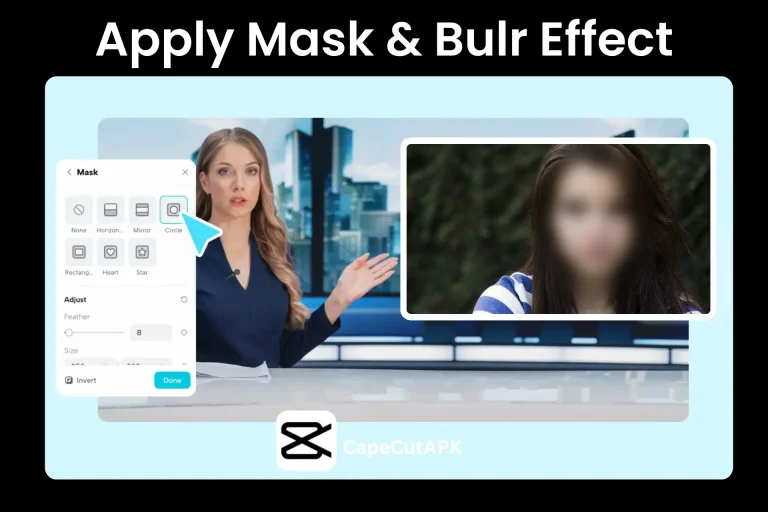
After adding your project to the timeline of this app, click on the “Overlay” option to add a duplicate of the video project to the timeline as a second video. Then find the “Effect” tool in the bottom menu toolbar of this app by scrolling right to left. Then select “Video Effect” to apply the blur effect on this video clip.
Step 4: Keep Blur on a Moving Face with Keyframes:
Suppose the face of any character or person is moving in the video (which it often is). Then you will blur it by using the Keyframe feature of CapCut Pro. For masking of a moving face, click on the “Keyframe” button and add different frames along the timeline. Adjust the size, position (X/Y axis), and intensity of this blur mask after adding every frame. This creates a smooth blurring effect frame-by-frame along with the moving face. After editing, it looks so natural.
Step 4: Export and Share:
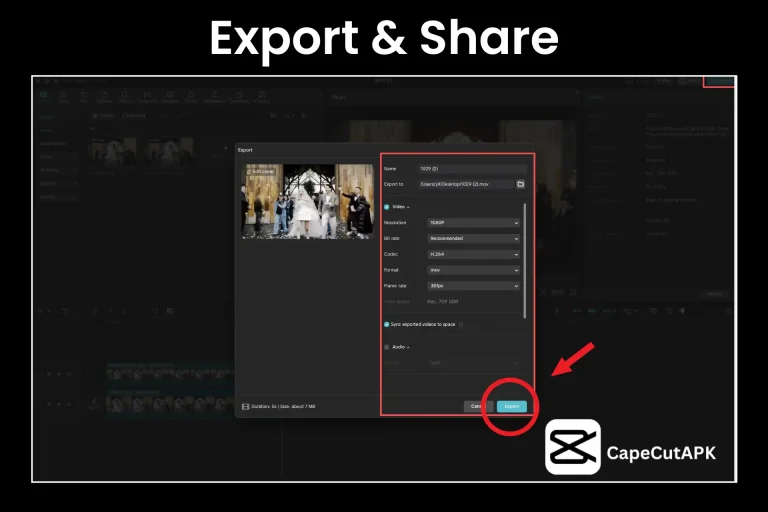
Once complete, this process then plays back the edited video to ensure that the added blur mask is following the face that you want to blur accurately. When you can correct any mistakes in the edited video clip and become satisfied, adjust its resolution, color rate, and frame rate according to the client’s requirements, and then click on the “Export” option, which present in the top-right corner of the app interface and save this video clip for share it on different social media platforms like TikTok, Instagram, Facebook, and WhatsApp without any hesitation.
You can also edit your content by face blur effect in your iOS device using CapCut for iOS version.
How to Blur a Face in a CapCut Video on Desktop (Easy Guide)
Are you finding some desktop apps to blur faces, or do you want to blur faces on a large screen in your video content? Then, don’t worry; you are at the right place because the CapCut desktop version offers precise and full control in different tasks, especially for face blurring. If you are working with longer footage or a fast-moving character that you want to blur, then the desktop version will become helpful for you.
Here is a step-by-step guide that is helpful for you to create YouTube videos or client work as a professional editor. Here, we will try to explain how to blur a face in a video by using blur effects in the CapCut for PC version.
Following these basic guidelines, you can blur a face on your PC:
Step 1: Import your project:
Start the CapCut desktop app and click on the “New Project” option. For importing your project, click on the “Import” button and adjust the video content in the timeline as you want to edit and create a duplicate of it as a second video clip in the timeline of the CapCut app.
Step 2: Apply blur effect
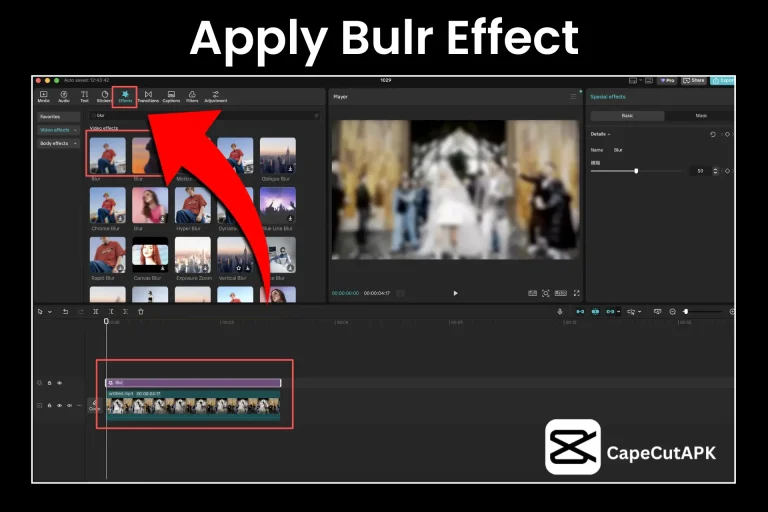
After completing the above procedure, you are now ready to apply a blur effect. Now, click on the “Effects” button, which is present at the top left corner of your desktop panel screen and then tap on the “Video Effects” option, which is present on the left vertical menu bar on your computer screen. Here, write “Blur” keywords in the search bar to search for the blur effect, and choose the blur effect as you want. This blur effect applies to the first video layer.
Step 3: Use Mask:
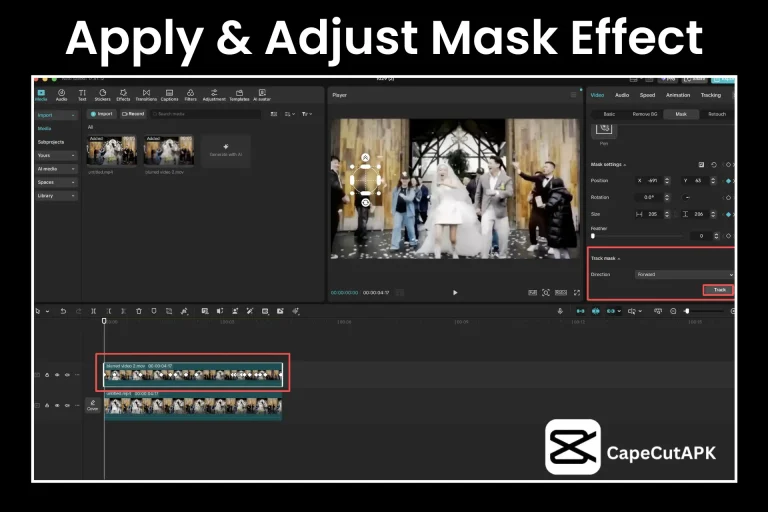
Once you finish the above actions, go to the top right corner of the window and click on the “Mask” option. Here you can select the required mask shape. You can adjust the size of the selected shape by resizing the handles according to your needs. By using the “Track Mask” option, you can also track any face in a video clip with a single click and apply a mask easily.
Step 4: Use Keyframe Options for Moving Face:
If any person is moving in your video clip but you want to blur their face using, then you can use the keyframe option for motion blur.
First, select the first layer, tap on the “Keyframe (diamond icon)” button, and move a few frames in the timeline, as the person’s face seems to be static; where there is a little bit of movement, add a new frame.
After adding every frame, you can adjust the blur mask according to your needs. When you apply this trick all over the video clip, then in the preview, you will see smooth movement of the blur mask along with the person’s face in the video.
Step 5: Export and Share:
Once you edit your video content, then again get its preview for any correction; when you are satisfied, then click on the “Export” tab, which is present on the top right corner of the window. Then choose custom format, bit rate, frame rate, and resolution. After this, save this project for sharing later on.
Why do we blur a face in a CapCut video?
Most people blur their faces in CapCut videos for different reasons, such as:
Conclusion
By using the CapCut app, you can blur someone’s face in a very easy and effective way to give a professional look to your video content, as well as maintain your privacy. CapCut MOD offers this effective and easy-to-use tool for everyone to make their video clips safe and professional on their desktop or mobile. You can demonstrate to your audience by using this tool. You can make your content good-looking by spending a few seconds using clean, even blurring effects. You can easily blur faces and edit video clips like an expert by following the above-given methods.
Here, you can avail a complete course about CapCut editing like removing background, adding text, reverse video effect, green screen effect, etc.