How to Convert Text to Speech in CapCut? Best Guide 2026
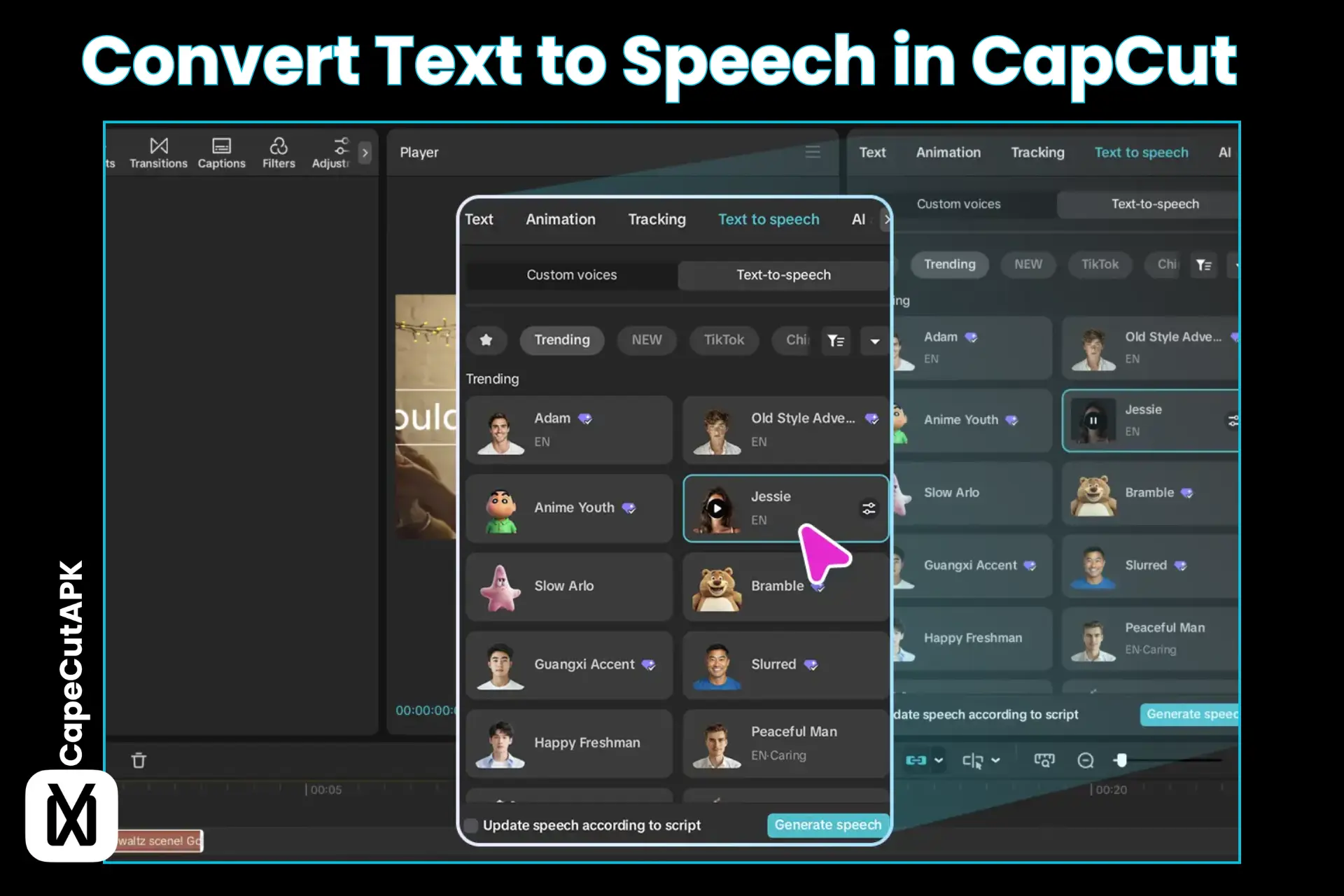
A voice-over on the video makes it more personalised and understandable as the voice explains the visuals for better communication. But not every creator wants to speak. However, Capcut offers an AI-Powered feature to convert text to speech in CapCut.
This text-to-audio converter tool is significantly used by social media creators to create quick, real-looking sounds like voice-overs. It is worth its weight in gold for social media content creators, advertisers, tutors, and international creators in other languages for region-targeted audiences.
Capcut Text to Speech
Text to speech CapCut feature is an important part of its AI-configured editing tools. Basically, it narrates your text input into your desired language and sounds. It is simple to work with for beginners. You just have to enter your script. The app offers 1000+ voices in more than 16 languages with different accents, tones, genders, and styles.
Capcut Pro APK magic wand helps to improve professionalism, viewer interest, and the understandability of content. You can create videos using this tool more perfectly and smoothly in a few clicks.
How to do Text to Speech on Capcut?
Text to Speech on Capcut Mobile
Follow these fewer steps to convert text to speech in Capcut:
Step 1: Open the Capcut app and start a new project or continue the previous one.
Step 2: Add your content to the timeline, and select it by tapping on it.
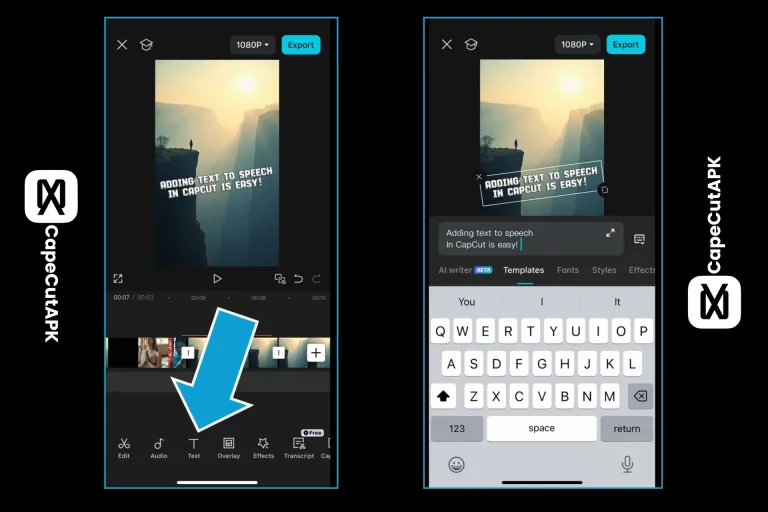
Step 3: Navigate to the “Text” icon and “Add text”. Now, add the text related to your content that you want to be narrated.
Step 4: Now, tap on the timeline of the added text and click on the “Text to speech” tool in the toolbar.
Step 5: Select the voice artist, customise its tone, accent and language according to your content’s nature and click on the ✔️ to start generating the audio.
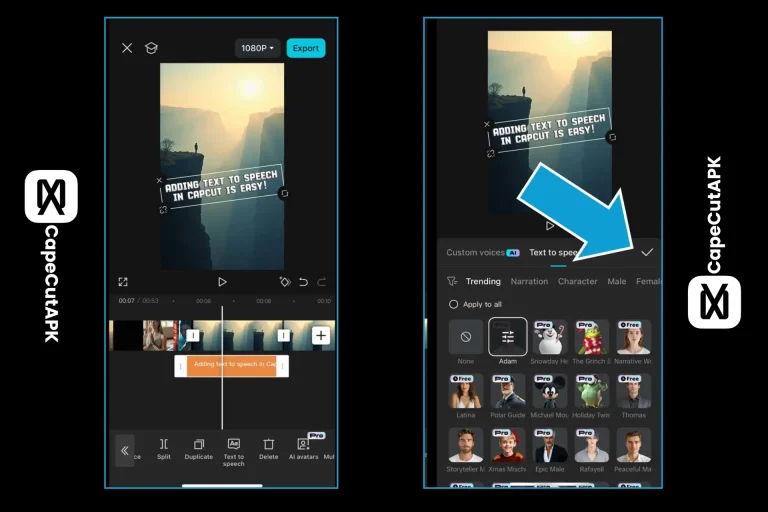
Step 6: The audio file will be added to your editing timeline. Tap on it to cut, trim, and apply effects, sync with your video. And export your project.
Text to Speech on Capcut PC
Video editing on a laptop is easier than on a mobile as the laptop offers a wide screen and a drag-and-drop facility. There are simple steps to convert text to speech in Capcut on PC:
Step 1: Launch the Capcut on your PC and open the project.
Step 2: Locate the text adding tool at the top left corner of the tools window. And enter the text you want to convert.
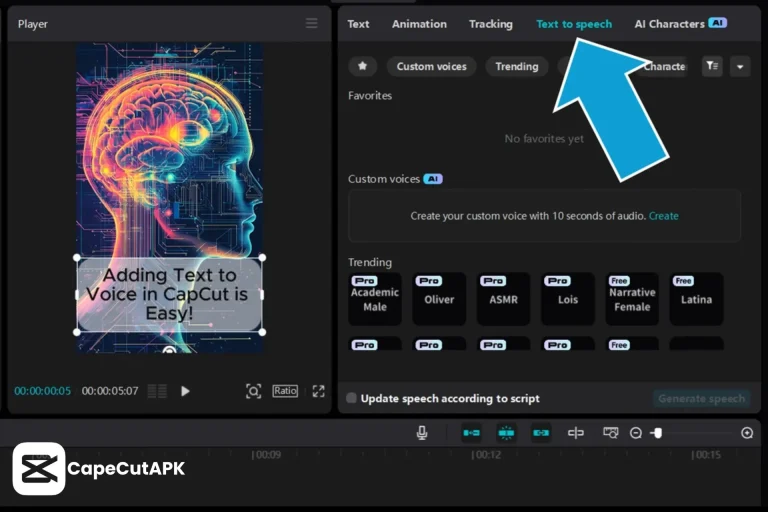
Step 3: After adding the text, click “Text to Speech” at the top and then “Generate Speech”.
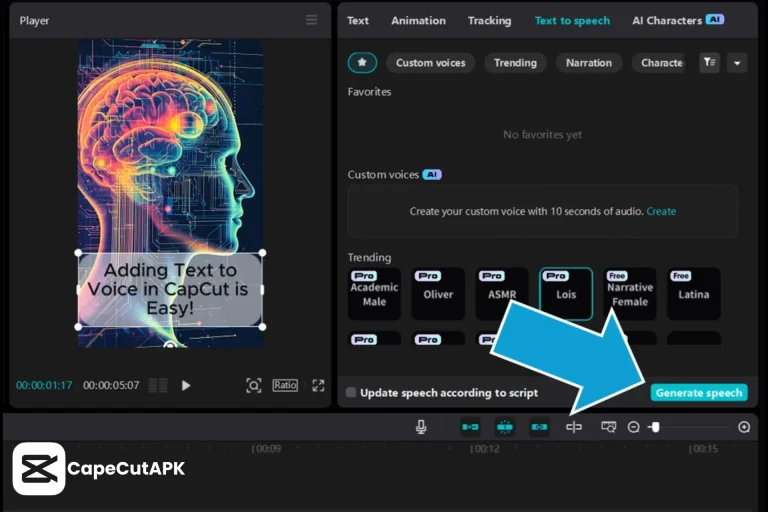
Step 4: The new track will appear on the timeline. Click on it to adjust the volume, speed, and sound effects according to your video.
Benefits of Using Capcut Text to Speech
Best Capcut Text to Speech Voice
| Voice Type | Best For | Tone | Content Type |
| Male | Tutorials, Reviews | Confident, Deep | YouTube videos |
| Female | Vlogs, General Content | Friendly, Smooth | Reels, Shorts |
| Narrator | Storytelling, Documentary | Authoritative | Long videos |
| Energetic | Gaming, Action Clips | Fast, Excited | Gaming edits |
| Calm | Educational Videos | Soft, Clear | Info content |
| Cute | Fun, Kids Content | Playful, High | Short clips |
| Robotic | Tech, Sci-Fi Content | Mechanical | Creative edits |
Conclusion
The text-to-speech converter tool in Capcut makes your videos efficient by providing them with high-quality sound. The process consists of just a few clicks, simple, clear and easily conductable even by beginners as well as experts. This amazing feature helps to work smarter, not harder.
Best of all, from the perspective of the audience, the clear, smooth, and fine-tuned voice assists the low-sighted persons in understanding the content.