How to Use CapCut to Edit TikTok Reels and YouTube Videos?

How to Use CapCut to Edit TikTok Reels and YouTube Videos?
Up for maximizing audience reach, improving viewer engagement rate, and creating monetizable content? I invite you to use CapCut Pro APK to edit TikTok reels and YouTube videos. Inasmuch as CapCut is a professional-grade tool to follow the COPE (Create Once, Publish everywhere) technique. 

When the CapCut is already there, you just have to film your master video in 16:9 or 9:16 and import it to the CapCut timeline for trimming the fat. Once you export the reel, you can opt to upload on TikTok, YouTube, Instagram, or Facebook.

This article precisely guides you on how to use CapCut to edit TikTok reels and YouTube videos. Let’s start editing!

CapCut Editing Interface 

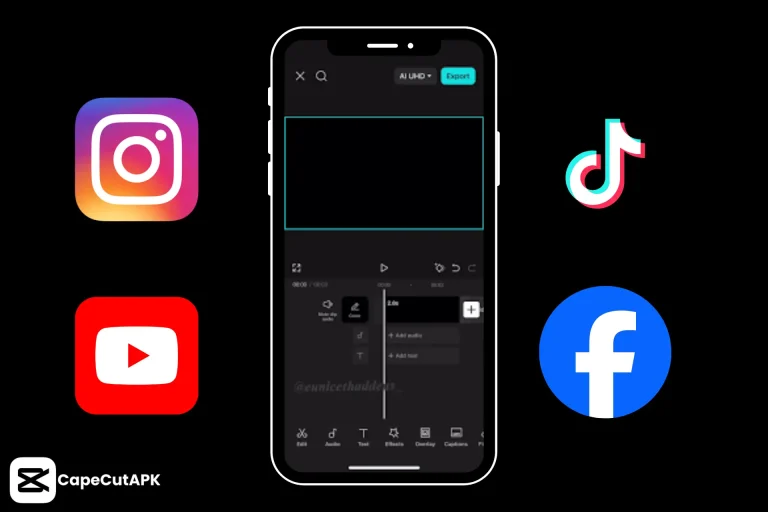
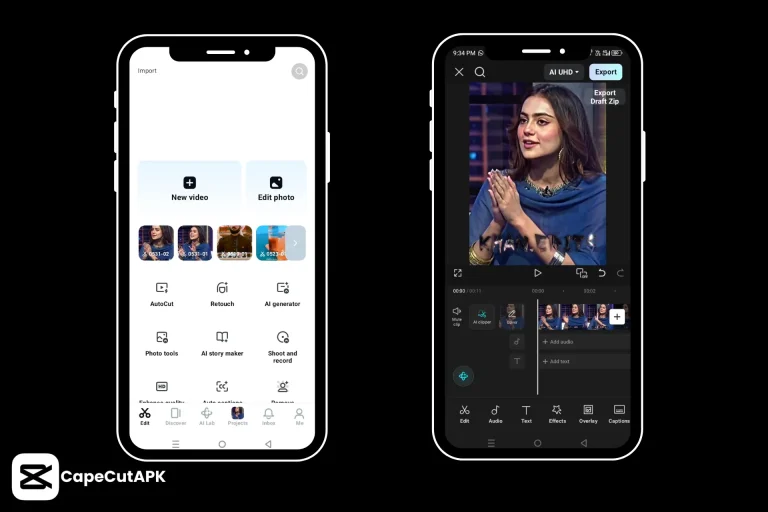
Before you go, understanding the editing interface of CapCut and the essentials for editing a project is important. The interface of CapCut is categorized into 3 sections that are listed below:
Use CapCut to Edit TikTok Reels and YouTube Videos

Preview

At the top of the editing screen, a video preview displays the project. You can play it through a play button (▶️).

Editing Timeline

Under the preview section in the middle of the mobile screen, the editing timeline displays the layers of the tracks of videos, audios, text, stickers, and whatever you import for layering and editing.

Tool bar

At the bottom, a bar of tools displays all the editing tools offered by the app, like Audio, Text, Effects, Filters, and all other tools are listed.

Getting an overview of the app interface before editing makes for faster and more precise execution. 

How to Make Reels on CapCut?

Cutting to the chase, we’ll guide the steps for professional video editing in CapCut. 

Step-by-Step Guide to Edit Reels 

Here’s a complete guide about CapCut Reels editing app​:

Step 1: Import settings

  • At the home tab, click on the “New Video.”
  • You’ll find two heads named “Albums” and “Library”. Select the video or photo you want to edit.
  • Once you click on the clip, you get an option in the bottom-left corner to crop the clip and click on “Add” to get the video on the editing interface.  

Step 2: Video Editing

  • Now select the “Aspect ratio” tool to set the ratios like 9:16 for short reels for TikTok, YouTube, Instagram, etc., and 16:9 for YouTube regular video. (You can select for other platforms from the tabs beside)
  • You can also pinch and drag the video to fit the frame manually.
  • Select Trim, Split, Crop to remove “ums” and “ahs,” making smooth and valuable content.
  • Move the playhead to the spot where you want to split to remove the part or add any effect.
  • Add an audio or text layer, click on the bars with + icons beneath the main video track.
  • Rearrange the sequence of the clips by dragging them to the desired position.

Step 3: Audio Tracks Editing

Beat syncing of the background music or voiceover makes the content professional.

  • Click on the “Audio” tool to add audio.
  • To add extracted music from a video, click on the “Extract.”
  • Click on the “Sounds” tab to get the background tracks from the in-app library.
  • Tap on the “Record” option to add your own voice.
  • Now, synchronize the speed, volume, and beats of the audio with the video clip.

Step 4: Adding Text and Effects

Text and captions are the source of storytelling to make the video more understandable. 

  • Click on the dummy track to add text, here You’ll see the options to add text, auto captions, stickers, text templates, AI-powered text, and even to draw the text with a pencil.
  • After adding the text, you can make it stylish using various fonts, colors, and animation effects and presets.

Step 5: Preview and Export

How to Make Reels on CapCut?
  • Preview and polish to make it look flawless.
  • Seek the “Export” button in the top-right corner of your screen.
  • CapCut offers direct sharing of the video on TikTok, YouTube, Instagram, Facebook, etc.  
  • The video quality customization button is present next to the export button. Click on it to adjust the resolution, frame rate, and bitrate of the video.

Conclusion

There are plenty of features available in CapCut that make it the top-rated video editing app among beginners as well as professional content creators. Keyframing, easing curve, speed adjustment, overlays, greenscreen, templates, and AI-assisted tools make it more competent among all the editing apps.

The app’s interface is likely to unlock the subsequent tools and assets. We make up for the rest of it by guiding the users through tutorial blogs such as “How to Use CapCut to Edit TikTok Reels and YouTube Videos?” 

Frequently Ask Questions

To create hormozi style video, go through these steps:

  • Import the videos from which you want to get the highlights. 
  • Split the highlighted movements from the video 
  • Rearrange these clips and fine-tune them to upload.

To make a highlight reel on CapCut: 

  • Shot a vertical video of a talking person from the upper body, including the head.
  • Import into CapCut to edit
  • Add color grades and effects 
  • Create closed captions and lip sync them with the talking face.
  • Keep the start-up of the video fast, up to 3 seconds, to energize the highlight.
  • Preview the edits and export the video.

Similar Posts

Leave a Reply

Your email address will not be published. Required fields are marked *